To add a new Vendor/Business Associate membership you must click “Memberships” from the Side menu
On the Membership Admin page, you will see a list of all your membership accounts. To add a new one, click “Add Member”
Enter the Member‘s info into the appropriate fields and make sure to change the Membership level to Business Associate
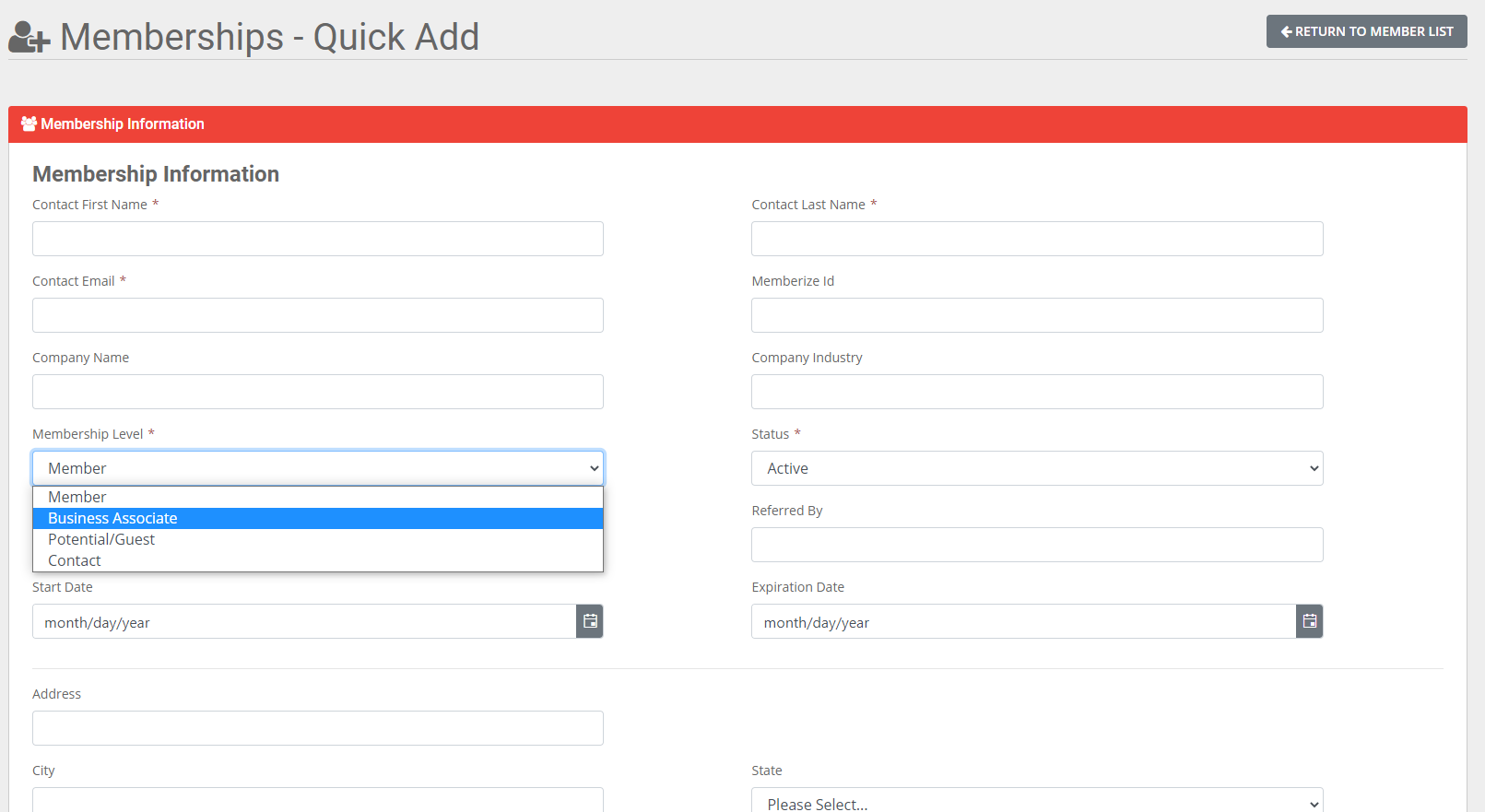
Now set up the User of the membership account at the bottom of the form. Select whether you would like to use the Contact’s Name and Email that you entered above or if you would like to enter new information. The password must be a minimum of 6 characters and must contain at least 1 uppercase, 1 lowercase, 1 number, and 1 special character.
HD Rep Email (This feature is only available to NREIA Chapters) an automatic email is sent to the Home Depot Team to enroll your member in the ProXtra program. If you do not wish to send the email, switch the toggle off.
Select the plan that is appropriate for your new member. If you are processing dues, enter the payment information and hit “Save”
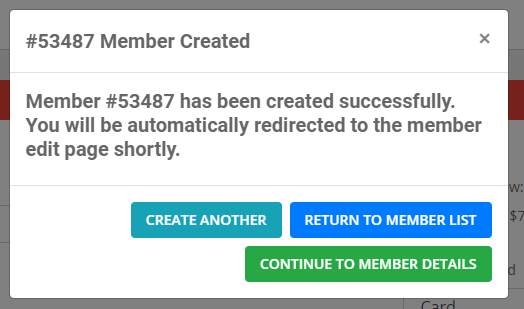
A pop-up window will inform you if you were successful in creating your new membership. Click "Continue to Member Details" to go to the membership account to enter the vendor information.
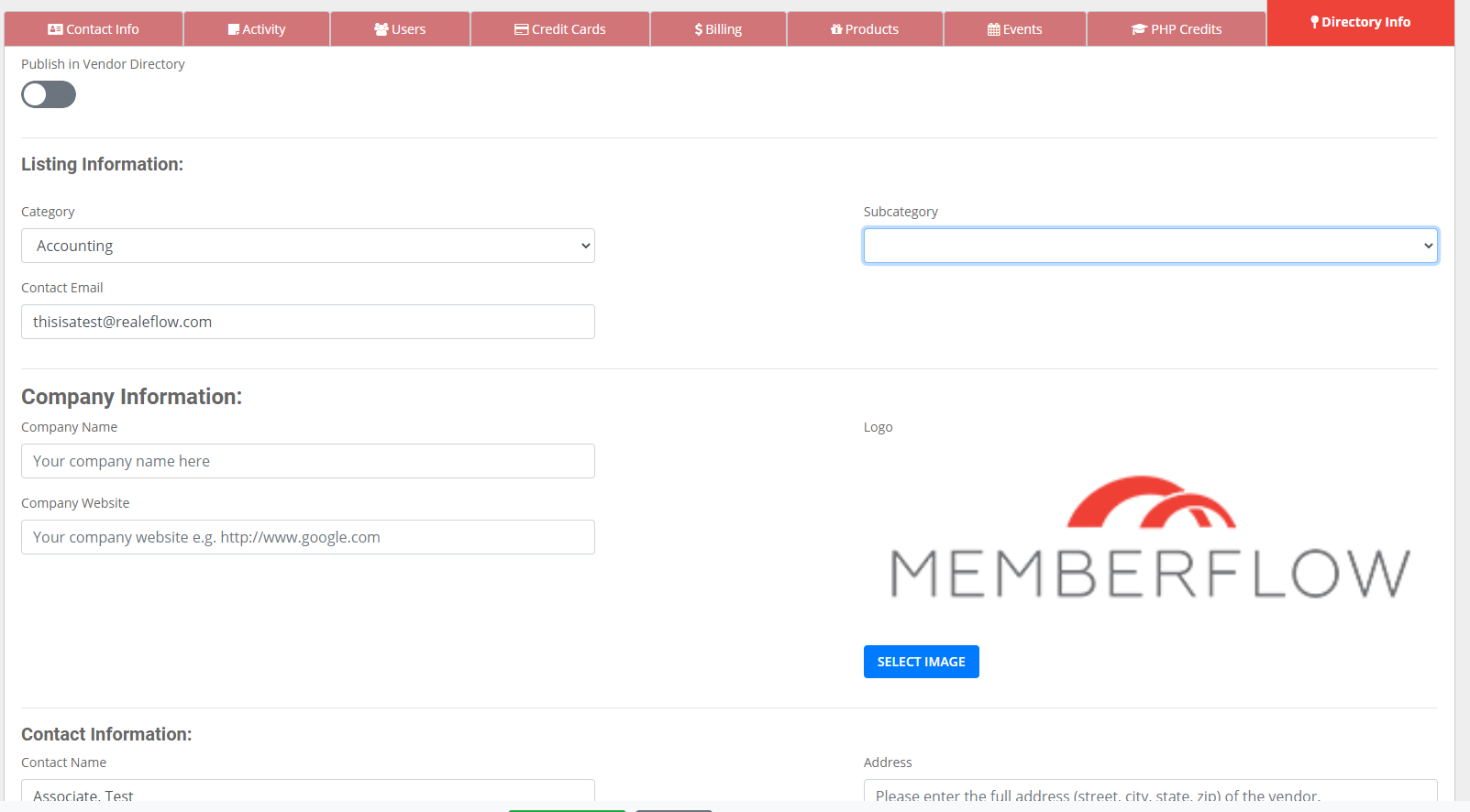
On the Membership Dashboard, click on "Directory Info"

Fill in the information, upload the company's logo, and hit "Save" (Make sure the toggle is Blue or it will not display on the page)
To verify that your listing is showing properly on your page to go your Memberflow portal /vendor ie. https://[your URL].memberflow.com/Vendor.
0 Comments