A snapshot membership report will show all current memberships matching the search criteria
To access the member report section fo the website, click on "Reports" on the side menu and click on "Member Report"

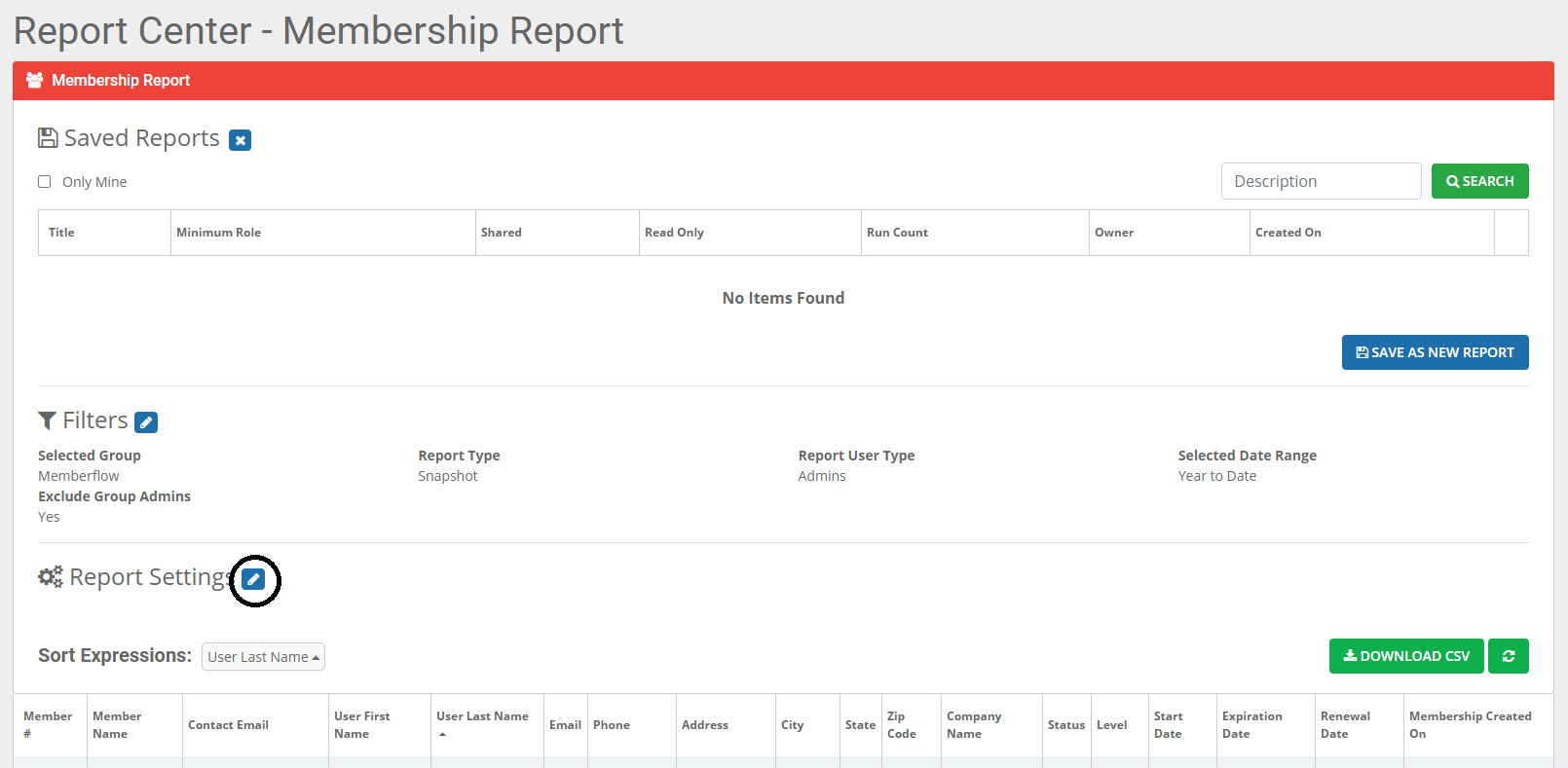
You will be taken to the Report Center for Membership Reports. From here click on the pencil icon to edit the filters for your report

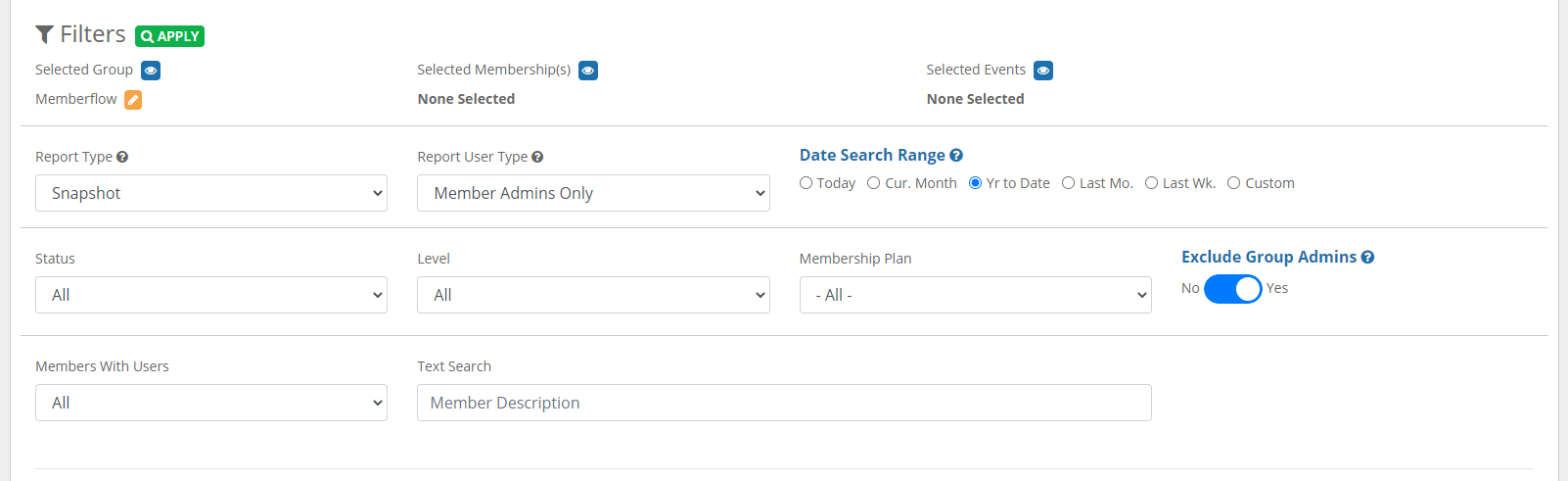
Enter the search criteria for your report. Once you have entered and selected the information for your criteria click "Apply"
*Currently our Level and Membership Plan fields are single select, we will be upgrading the fields to a multi-select
Next, you can edit the fields that you would like to include in your report, click on pencil icon next to Reporting Settings.
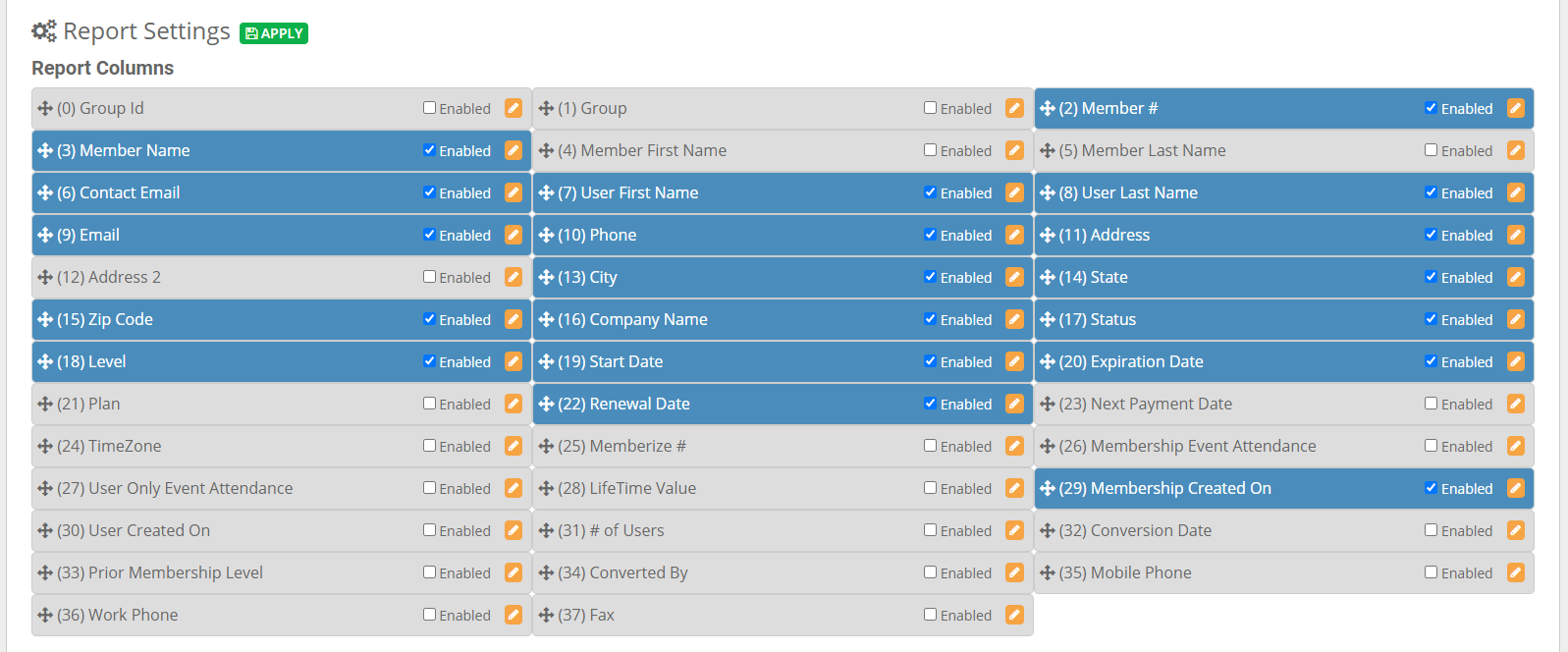
Here you can select the fields you would like to include and even rearrange the order they will appear in your report. Once you have selected all fields and placed them in the appropriate order, click "Apply"
Your report will generate and you will be able to download to a CSV file

*Sort Expression is locked to sort by Last Name only, you can sort A-Z or Z-A by clicking on the Last name column.
0 Comments