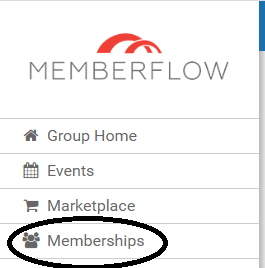
To update a user’s login information including their user name, password, admin status, and/or time zone, click “Memberships” from the Side menu
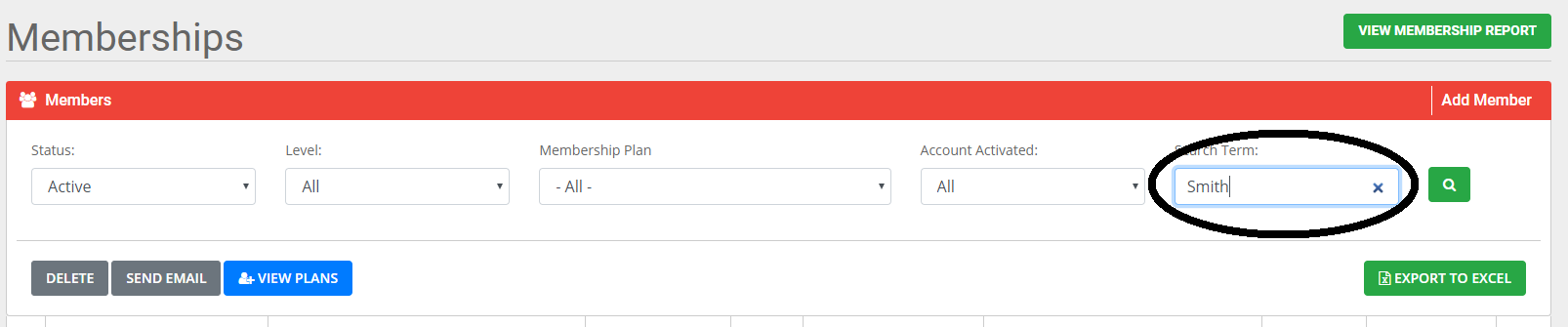
On the Membership Admin page, you will see a list of all your memberships. Search for the membership in which you want to edit
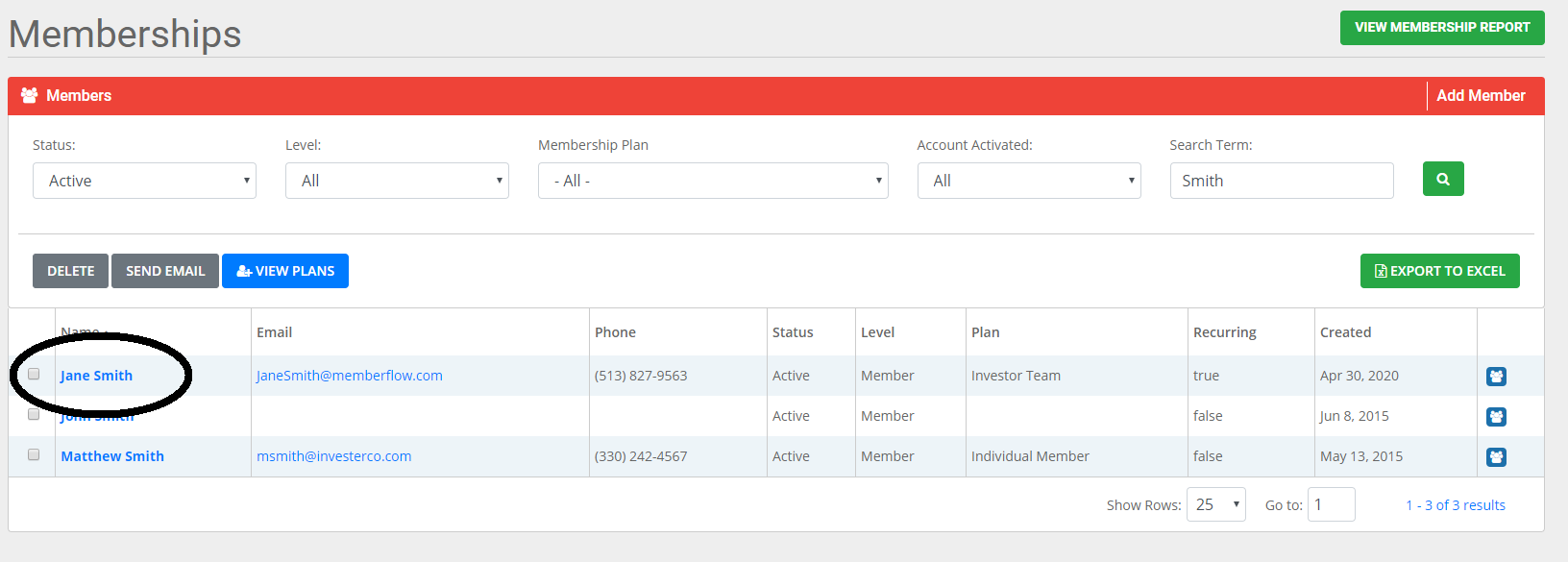
 Click on the name of the correct account in which you want to edit
Note: Only primary users (The person who purchased the membership) will show in the list view results. To view secondary users on an account, click the blue user icon to the right.
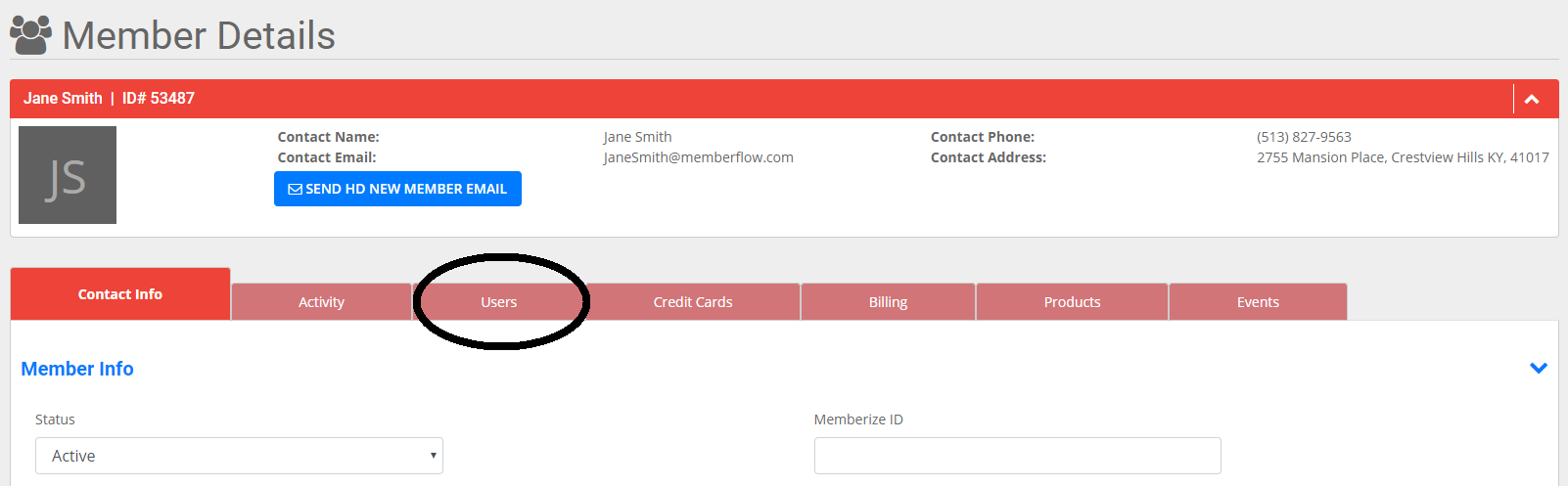
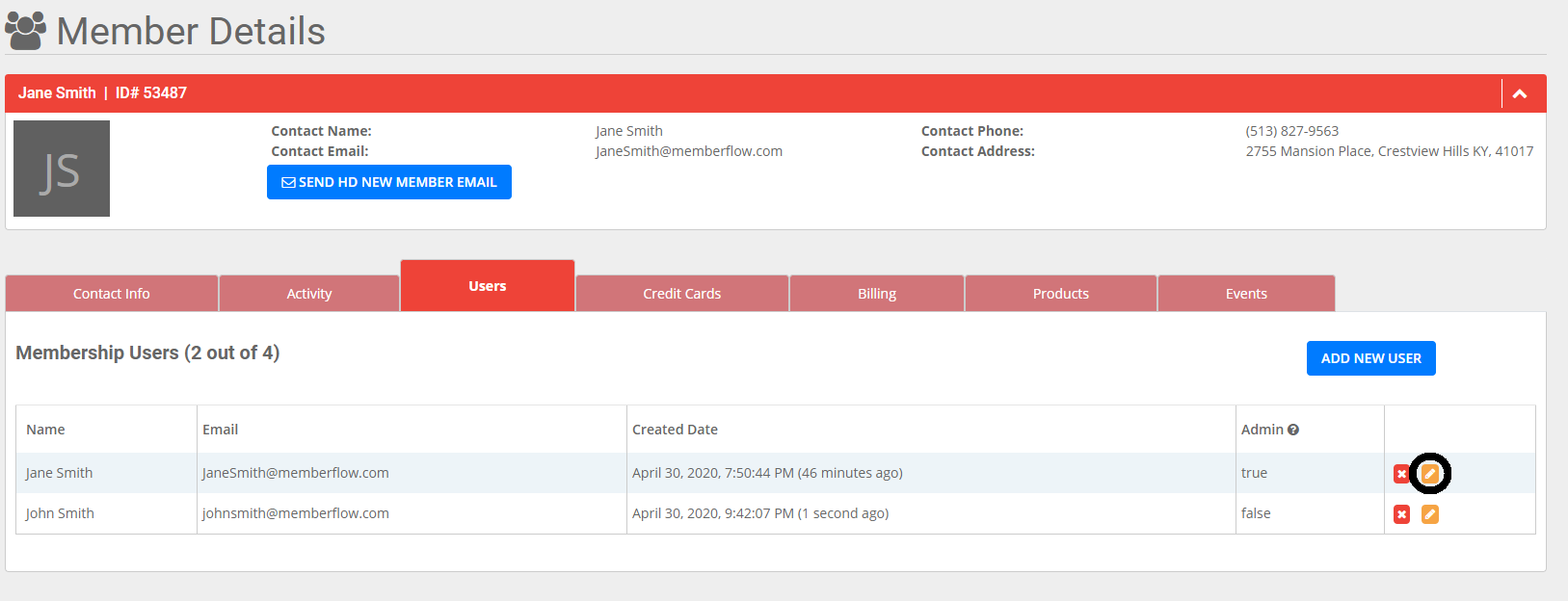
On the Member Details page, click the “Users” tab
On the Users tab, click the yellow edit icon of the user you would like to edit
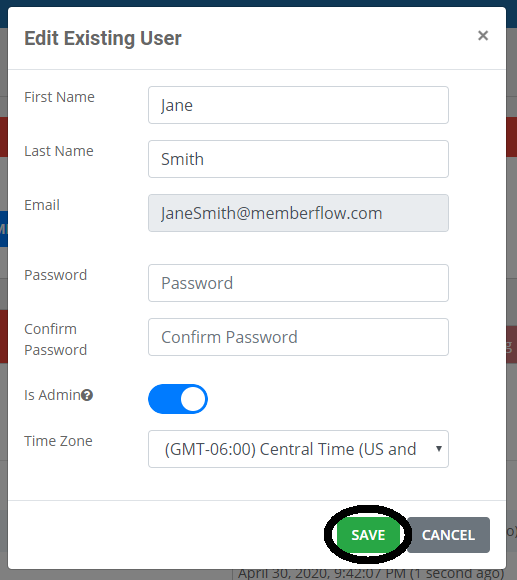
Enter the information for the new user. The password must be a minimum of 6 characters, it must contain at least 1 uppercase letter, 1 lowercase letter, 1 number, and 1 special character
- Please note: You cannot change a user’s email address because it is the unique identifier for the user. To edit their email address, you must contact Memberflow Support at support@memberflow.com
When you are finished click “Save”
0 Comments